Photoshop Composite Image
- Nathalie Gross
- Feb 16, 2023
- 2 min read
In this post, I will be sharing a composite image I have created in my own genre and the steps taken, tools used to create this image, and my experience through this process. I have completed this assignment through photoshop. Earlier on, my class practiced how to use this app by adding a soccer player onto a soccer stadium, editing lighting, and more. Overall this task has helped me gain a better understanding of Photoshop.
My experience:
This app has been extremely challenging to figure out. However I was determined to improve my comprehension of this topic. After reviewing videos and articles online, I started to get the hang of it. After this, the process was relatively smooth.
Link to the main video I used: https://www.youtube.com/watch?v=OnSAnAolpmI
- This source helped me understand the different tools in the app and how to use them
Article Link:
- This article is from Adobe and helped me understand step by step how to use certain tools
The composite image we did as a class of the soccer stadium:

My composite image:
All of the images I used came from Pinterest. I research the photos I was looking for there and found the ones that really stood out to me. After combing these photos together, the final image below was created.

How I made the photo: I used a variety of tools to create this image. For example, I used the Polygonal lasso tool, Camera Raw Filter, Move tool, Quick selection tool, and Select and mask.

I started by choosing the focal point of my composite. I chose this girl because of the lighting and mood it creates.
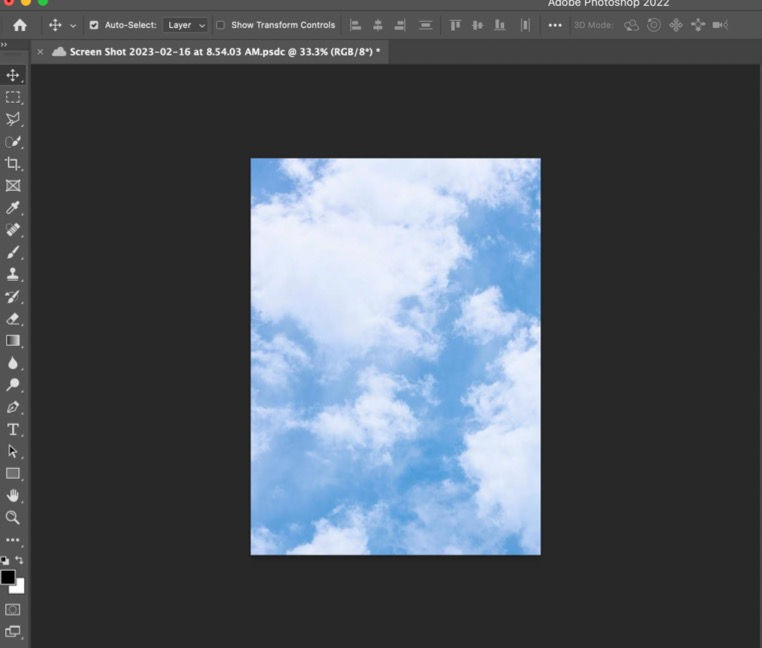
Then, I chose what I wanted the background to be and dragged it into Photoshop.
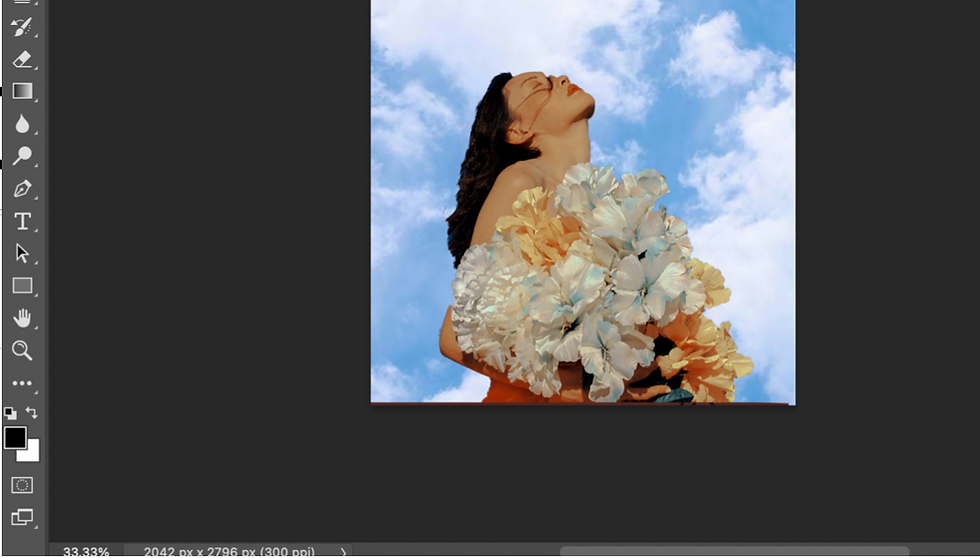
I used the quick selection tool to remove the background of the model. I used to tool to carefully trace around her and then used the select and mask tool to finish it off.

However, it was missing something so I decided to add a bird to bring another focal point to the composite. I started by dragging my image into the frame and then repeated the same process for removing the background as for the model.
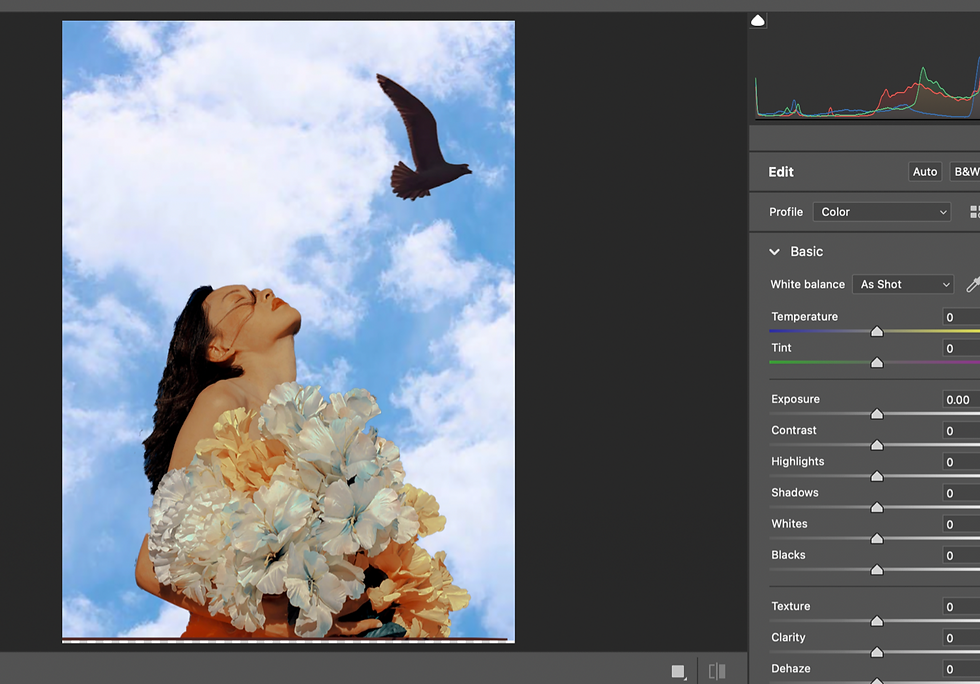
I was then left with this image. The last step was the adjust the coloring of my composite. I adjusted many things such as tint, shadows, clarity and vibrance.

These are the layers that represent the process of creating the composite.


Comments